Batch & Selective Export
The Backup page is the heart of XWX Backup: pull conversations from every supported platform into your local vault in bulk, selectively, or on a schedule. Exports are incremental — nothing gets duplicated.
How batch export works
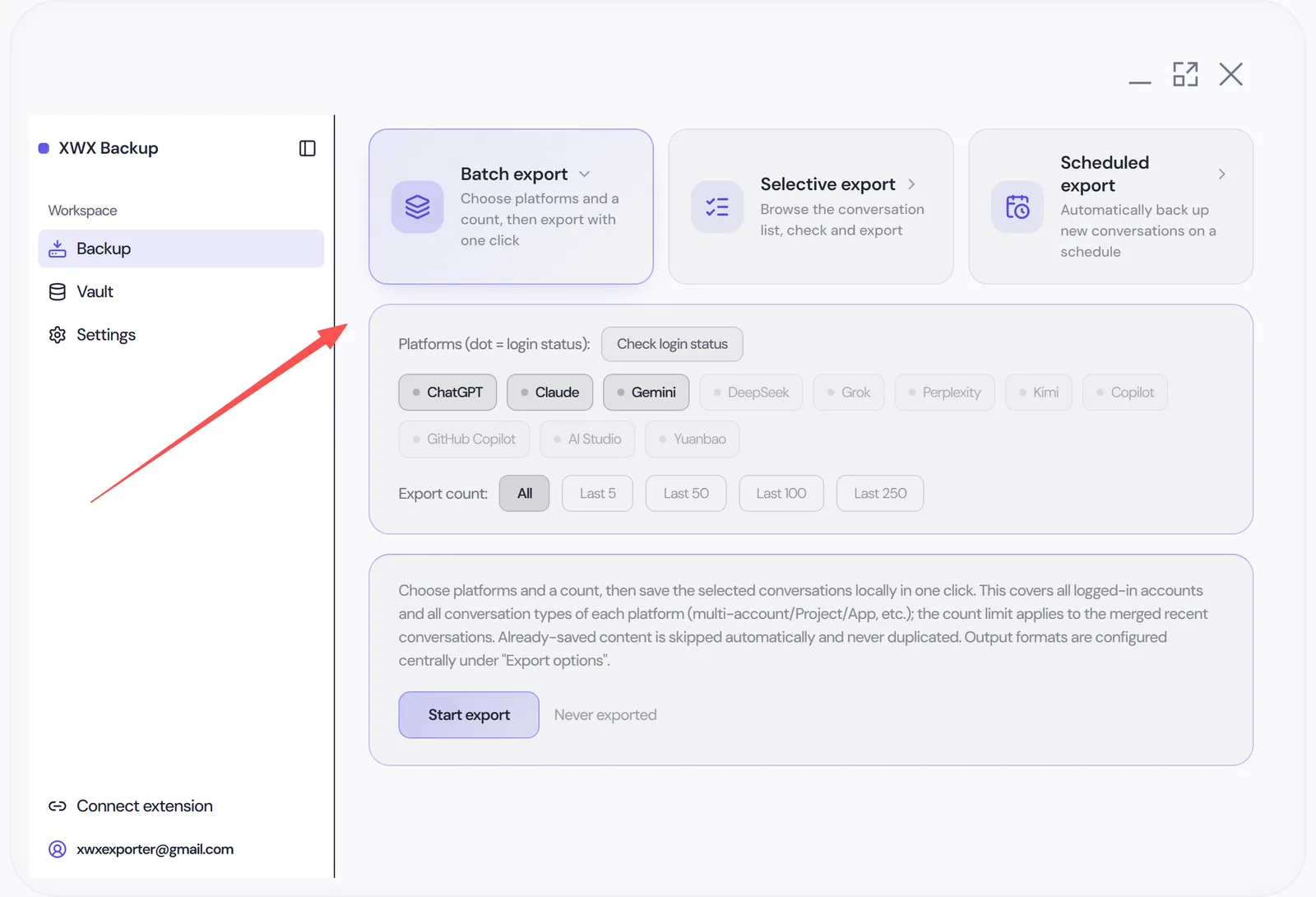
Choose platforms and a count, then save the selected conversations locally in one click.
- Coverage includes all logged-in accounts and conversation types of each platform (multi-account, Projects, Apps)
- The count limit applies to the merged recent conversations across selected platforms
- Already-saved content is skipped automatically — re-running never creates duplicates
- Output formats are configured centrally under Export options
Each item goes: fetch conversation list → fetch full conversation by ID → save to vault → optionally generate PDF/Word output.
Export options & output formats
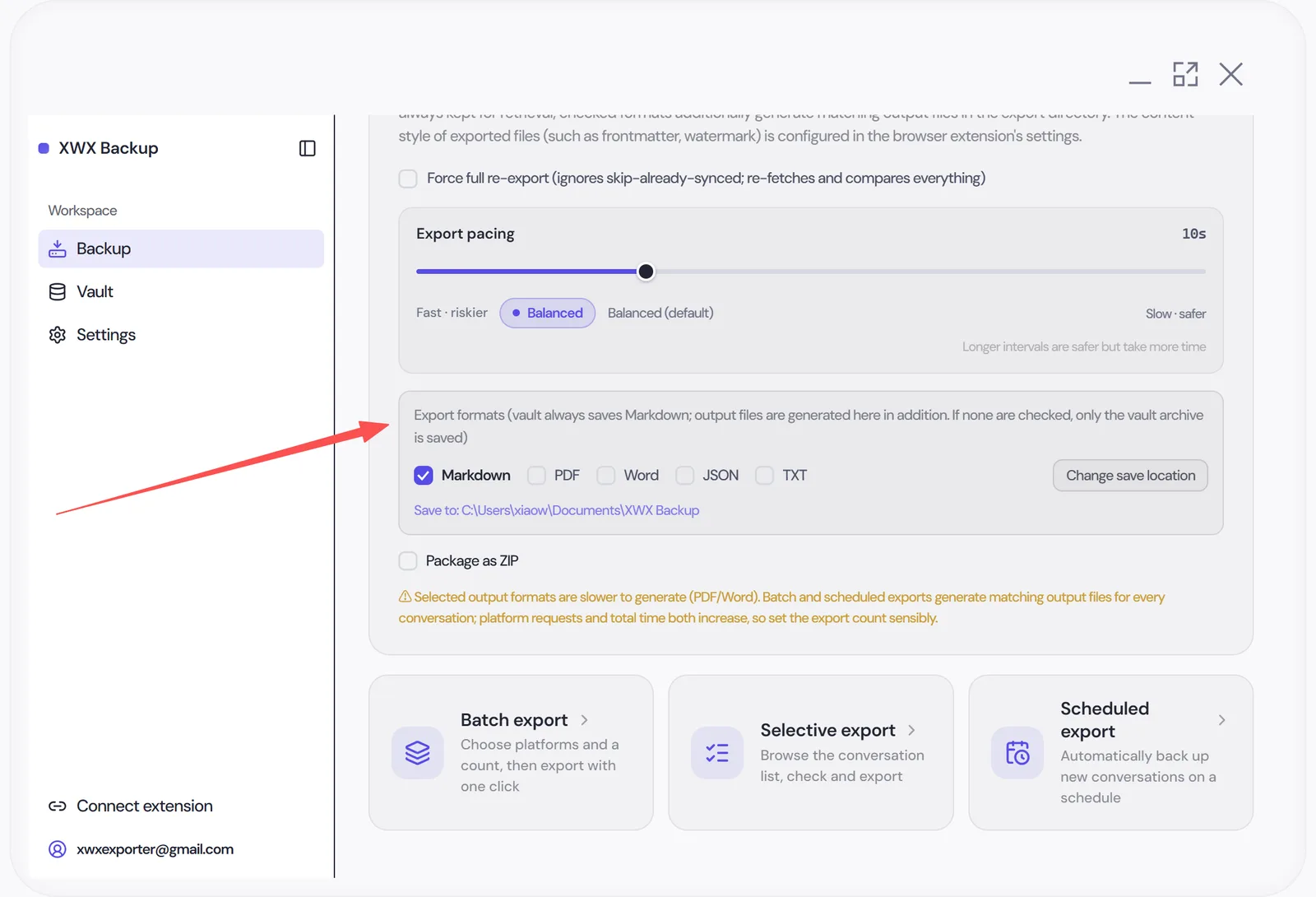
The vault always saves Markdown — that’s what powers search. Optionally, additional output files are generated per conversation into your chosen export directory:
| Format | Purpose |
|---|---|
| Markdown (.md) | Always saved to vault — searchable, Obsidian-ready |
| Professional layout, generated per conversation | |
| Word (.docx) | Editable document for reports |
| JSON | Structured data of the full conversation — for scripts, analysis and LLM pipelines |
| TXT | Plain text without markup — for grep, logs and simple text processing |
Choose the save location right next to the format checkboxes. If no extra formats are checked, only the vault archive is written — the fastest option for pure backup.
Selective export
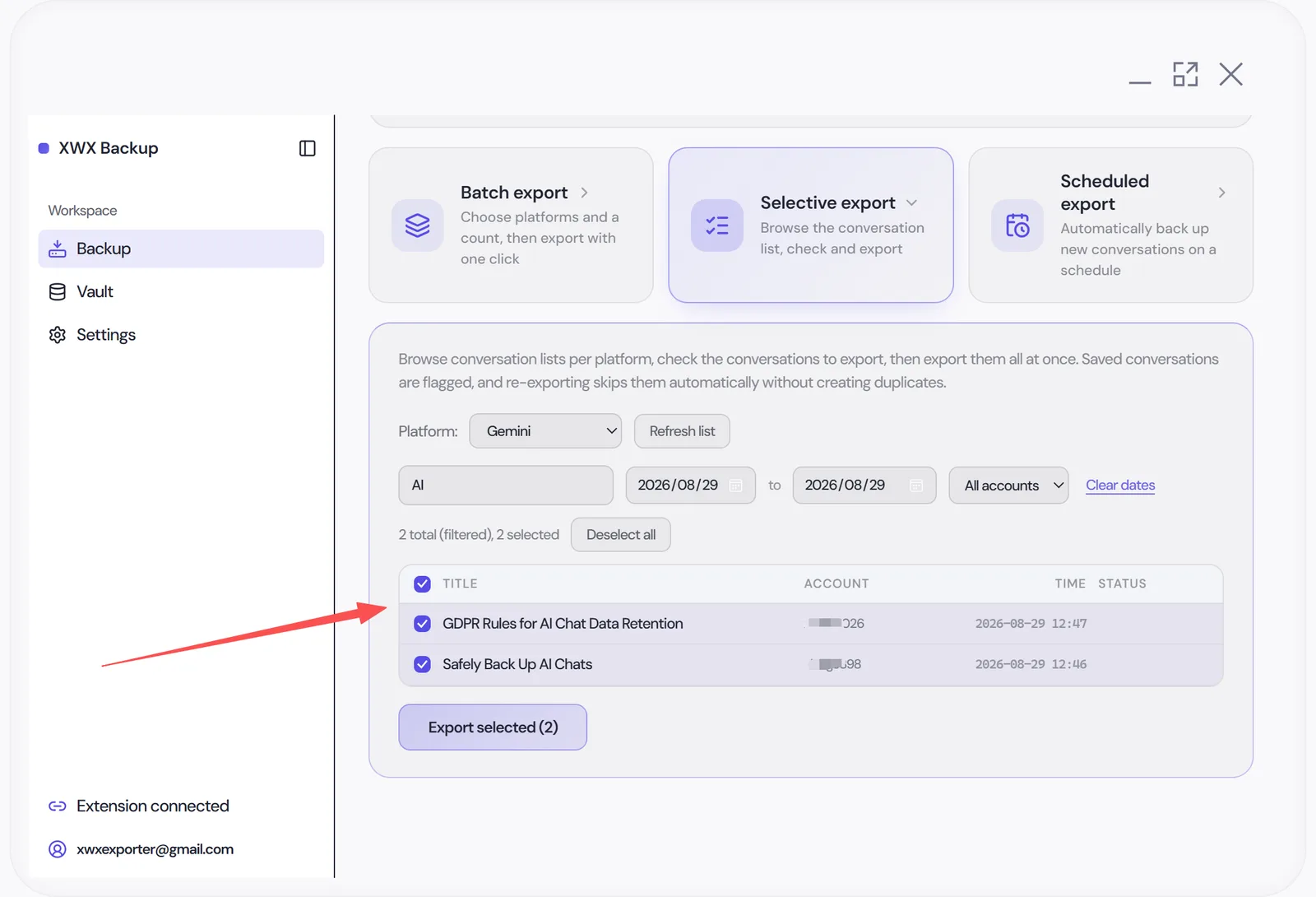
For finer control, use the selective export flow:
- Browse the per-platform conversation list (with titles, dates and message counts)
- Filter by account, conversation type, date range, tag or starred status
- Tick individual conversations — or select all filtered
- Click Export selected
This is ideal for topping up specific projects or grabbing conversations you starred earlier.
Pacing & account safety
Bulk reading runs against platform web APIs that weren’t designed for automation, so XWX Backup defaults to conservative behavior:
- ~6 seconds per item by default, with randomized request intervals
- A 2–4 minute cooldown break after every 100 items
- Automatic back-off and retry when a platform returns rate-limit (429) responses
- Per-platform risk levels; platforms owned by the same company are never operated in parallel
You can adjust the per-item interval on the Backup page (0–30 seconds; a live risk estimate from High to Very low updates as you drag the slider) — slower is safer. Pause and resume mid-run at any time; completed items are remembered, and resuming skips them.
Reading the results & retrying failures
When a run finishes you get a precise summary: added / skipped / failed, plus per-item errors where relevant (e.g. not logged in to a platform).
- Failed items don’t block the rest of the run
- Fix the cause (log in, reconnect the extension), then re-run — previously succeeded items are skipped
- Use Force full re-export if you suspect content changed on the platform and want everything re-fetched and compared
Frequently Asked Questions
How long does a large export take?+
Roughly 6 seconds per conversation at default pacing, plus cooldown breaks every 100 items. A 500-conversation initial import takes about 1–1.5 hours; schedule it and let it run.
Why do some items fail?+
Usually a logged-out platform or an expired browser session. Check login status per platform (the dots next to platform names), log back in, and retry — completed items are skipped.
Will exporting create duplicate copies?+
No. Every conversation is hash-checked against your vault; identical content is skipped automatically, and changed conversations update their existing file.
Can I export only specific conversations?+
Yes. The selective export flow lets you browse each platform’s conversation list, filter by account, conversation type, date range, tag or starred status, then tick exactly the conversations you want and export them in one click.
Can I get JSON or TXT output as well?+
Yes. In addition to Markdown (always saved to the vault), batch export can generate PDF, Word (.docx), JSON and TXT files per conversation — pick any combination under Export options and choose a save location.