Scheduled Auto-Backup
Manual backups only protect what you remember to protect. Scheduled export runs in the background and keeps your vault continuously up to date with new conversations across all connected platforms.
Enable scheduled export
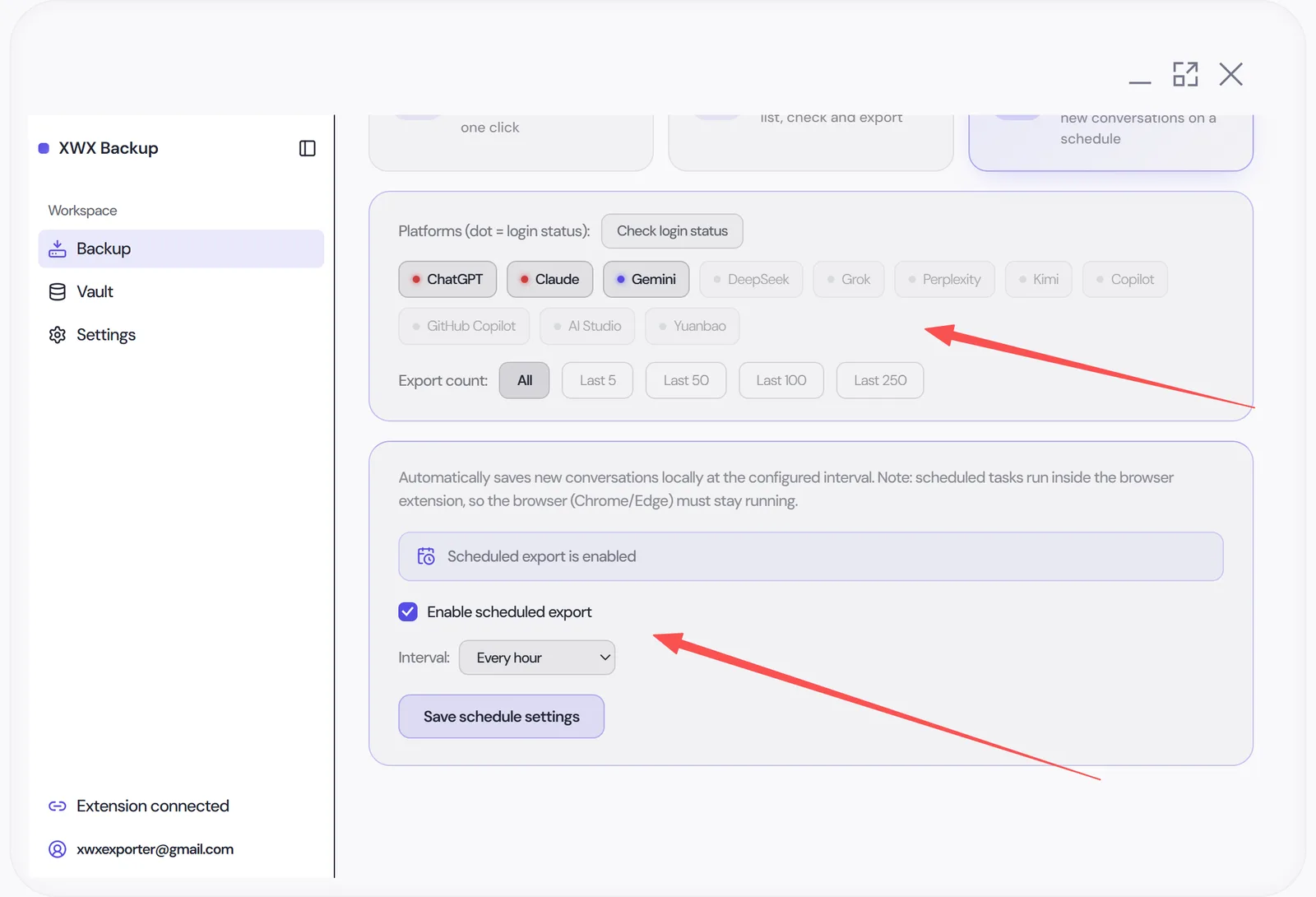
On the Backup page, open the Scheduled export section:
- Toggle Enable scheduled export
- Pick an interval: every 30 minutes, hourly, every 3 hours, every 12 hours, or daily
- Set a limit per run (e.g. latest 20 conversations)
- Save — the schedule takes effect immediately
Platforms follow the same selection as batch export. Output formats come from the shared Export options.
Incremental by design
Each scheduled run fetches only what’s new or changed since the last successful run:
- Conversations already in your vault are skipped (hash comparison)
- Runs typically take seconds, not minutes
- Results appear as a compact notification: added / skipped / failed
That makes frequent intervals cheap — “every hour” doesn’t mean re-downloading your entire history every hour.
Where the schedule runs (and what it needs)
The countdown runs inside the desktop app itself and survives restarts. The actual fetching goes through the browser extension, because that’s what holds your logged-in sessions:
- When a slot fires, the app starts the export automatically — if your browser is already running it begins silently, otherwise the app wakes it with a small connection page
- The browser does not need to stay open between runs — it’s only needed for the minutes a run is active
- If the app wasn’t running during a slot, that slot is simply skipped and the schedule re-arms for the next interval — nothing is back-filled, so duplicate runs are impossible
- Platform logins must still be valid in the browser; a scheduled run can’t log in for you
Why scheduled backup matters
Platform-side history is not a backup. Accounts get locked, workspaces get wiped by policy changes, products get sunset, and conversations get deleted accidentally — none of it is recoverable from the provider.
An hourly or daily schedule converts that risk into a non-event: whatever happens on the platform side, yesterday’s conversations are already on your disk.
Frequently Asked Questions
What happens if my computer was off at the scheduled time?+
The missed slot is skipped and the schedule re-arms for the next interval — nothing is back-filled, so there is no risk of duplicate runs. And because exports are incremental, your next successful run picks up everything new anyway.
Does scheduling increase the risk of platform throttling?+
Marginally at most — incremental runs touch few requests, and the same conservative pacing applies. Frequent-but-small runs are actually gentler than rare huge ones.
Can I use both batch and scheduled export?+
Yes — they share the dedupe layer, so mixing them never creates duplicates.
Do I need to keep the browser open between runs?+
No. The desktop app triggers each run and wakes your browser automatically when a run starts. The browser only needs to be available for the minutes the run is active.